Openstack
Our OpenStack environment EODC Compute is available at compute.eodc.eu.
OpenStack is an open-source cloud operating system consisting of various components that manage virtualised compute, network and storage resources. eodc operates an OpenStack environment to provide cloud infrastructure to our users.
→ See How to use OpenStack for a step-by-step guide to creating an instance and setting up a load balancer.
Getting access
To work with your cloud infrastructure, we set up an OpenStack project (also known as a tenant) for your company or research project. A project is a logical group of users and resources that is isolated from other projects. Each project has its own users, who can launch virtual machines and manage networks and storage.
Accessing the project is possible via the OpenStack Dashboard (Horizon) or the OpenStack API.
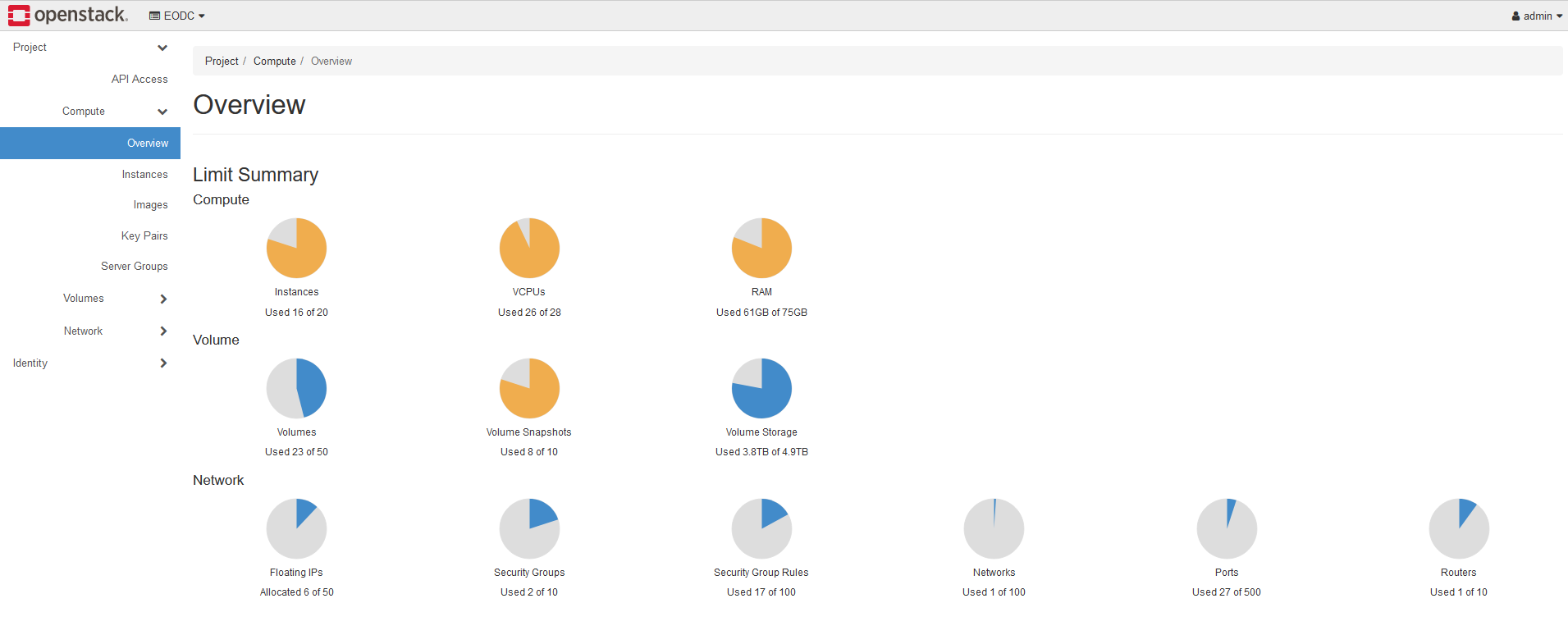
Images, flavors and volumes
Images for your virtual machine are essentially the operating system. Currently, our available images are:
Ubuntu
Rocky
Debian
If you would like to work with another image, please contact support@eodc.eu.
Flavors are the resources that you can allocate to your virtual machine. Their naming convention consists of the number of CPUs and RAM.
Volumes are where and how you store your data. We offer six different volume types, split between two replication options and three performance profiles. The figures below are based on a 10GB volume size:
speed |
desired bw |
max bw |
desired iops |
max iops |
|---|---|---|---|---|
slow |
2GBps |
5GBps |
5000 |
10k |
medium |
5GBps |
10GBps |
15k |
30k |
ultra |
20GBps |
50GBps |
100k |
1M |
Depending on your specific use case, there are different options to consider:
We recommend using the default volume size (15GB) for boot devices.
For additional storage needs, we recommend using additional volumes. This affords much greater flexibility, including allowing for later dynamic size changes.
For critical data, a replication factor of 3 is recommended.
Our default volume type is med-3repl. We feel this offers the best balance between cost and performance while ensuring the highest level of data integrity. We’re happy to change the default volume type in your OpenStack project, just reach out to support@eodc.eu.
Available distributions
RedHat Enterprise Linux (RHEL) based:
Rocky Linux 8
Debian based:
Debian 11
Ubuntu 22.04 LTS
Choosing a distribution
In reality there is no good or bad distribution — which distro to use is mostly personal preference and familiarity. The most notable difference is the package manager:
aptfor Debian based distrosdnffor RHEL based distros
Debian has a lot of packages in its main repositories while RHEL is rather limited, though it can always be expanded by adding new repositories like epel-release. The differences between Debian based distros like Debian and Ubuntu are even smaller, mostly coming down to preinstalled packages (or, in Ubuntu’s case, the additional snap package manager used alongside apt).
Important: the default login user on our OpenStack images is eodc.